WordPress «Failed to write file to disk» error: causes and fix
This error blocks image uploads and plugin installs in your WordPress. Here are the most common causes and how to fix it step by step without losing content or time.
Published on · Updated on · 9 min read
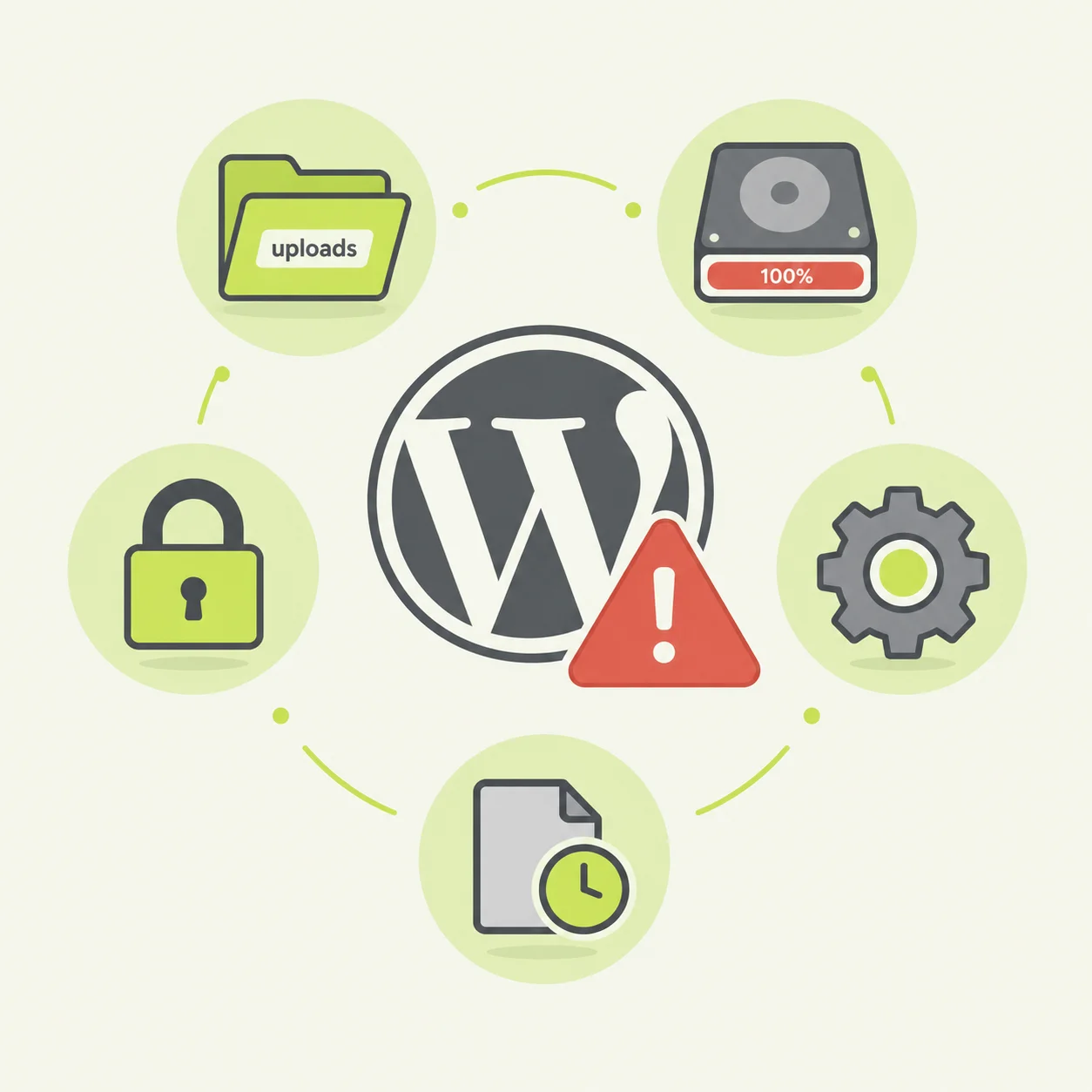
You’re uploading an image to your media library or installing a plugin in WordPress and, suddenly, a message appears that stops everything: «Failed to write file to disk». You can’t continue, you don’t know what’s happening, and you fear the worst.
Don’t worry: you haven’t lost anything. This error means WordPress received the file correctly from your browser, but can’t save it on the server. The upload process starts fine, but at the moment of writing the file to its destination folder, the file system rejects the operation.
Put simply: WordPress wants to save the file, but the server says «I don’t have permission to write here» or «I don’t have space left». The problem isn’t in WordPress, but in the server configuration or folder permissions. And the good news is that, in most cases, it can be fixed quickly.
In this guide I’ll explain the most common causes and how to fix them step by step. It’s a technical error worth knowing about if you manage your own WordPress site. If you want to understand why technical maintenance is key for your SEO, start with why your WordPress needs maintenance.
What the error means and why it appears
When you upload a file to WordPress (an image, a PDF, a plugin), the
flow is always the same: your browser sends the file to the server, PHP
receives it and saves it temporarily, and then WordPress moves it to its
final location inside wp-content/. For images
it would be wp-content/uploads/; for plugins,
wp-content/plugins/.
The «Failed to write file to disk» error appears in the last step, when the server’s file system rejects the write. The reasons can vary: incorrect permissions, lack of space, problems with PHP’s temporary directory, or a file owner that doesn’t match the user running PHP.
The good news is that none of these causes mean you’ve lost content. Your database, your posts and your pages are intact. Only the specific write operation has been blocked. Once the problem is solved, you’ll be able to upload the file again without issues.
The 5 most common causes
These are, in order of frequency, the reasons why this error appears:
Incorrect folder permissions
This is the most frequent cause. WordPress needs specific permissions to write to its folders. If the permissions are too restrictive (for example, 700 instead of 755), the server rejects the write. The correct values are 755 for folders and 644 for files. This often occurs after a migration, a backup restore or a change in hosting configuration.
The server disk is full (or the inode limit has been exhausted)
If the space allocated to your hosting is at its limit, the server has nowhere to write. The message is misleading because sometimes it seems like there’s «space left», but the problem may be the disk quota or the inode limit (maximum number of files). A cache or backup plugin that generates thousands of small files can exhaust this limit without the total space appearing full.
PHP’s temporary directory isn’t working
Before moving the file to its final destination, PHP stores it
temporarily in the upload_tmp_dir directory. If this
directory doesn’t exist, doesn’t have write permissions, or is full,
the upload fails even before WordPress can do anything. It’s
more common than it seems: a large backup that wasn’t cleaned up can
block all uploads.
The file owner doesn’t match the PHP user
On some servers, the PHP process runs under a different user than the owner of the WordPress files. If they don’t match, PHP doesn’t have permission to write even if the numeric permissions are correct. This occurs after migrations between hostings, restores made with the root user or changes in the server configuration.
A plugin or the theme is interfering
Less frequent, but possible. Some security, cache or file management plugins apply overly strict rules that block writing. If the error appears right after installing or updating a plugin, suspect that first.
How to fix it step by step
I suggest a logical order: from the fastest and most frequent to the most complex. Don’t skip steps; each one rules out a cause and brings you closer to the solution.
Step 1 · Check the site health status
Before touching anything, go to Tools → Site Health
in your WordPress dashboard and click the Info tab.
Scroll down to the File Permissions section. There
you’ll see whether the key directories (wp-content/uploads/,
wp-content/plugins/) appear as «Writable»
or «Not writable».
If any appear as «Not writable», you already know the problem is permissions. If they all appear as writable, the problem may be disk space or the temporary directory.
Step 2 · Check disk space from your hosting
Log into your hosting panel (cPanel, Plesk, SiteGround Site Tools, etc.) and look for the Disk Usage section. There you’ll see:
- How much space you’re using.
- How much you have available.
- Whether there’s an inode limit (number of files).
If space is at its limit, delete unnecessary files: old backups, logs, previous plugin versions, etc. A typical case is accumulating automatic backups that take up GB without you realising.
Step 3 · Fix folder permissions
If the problem is permissions, you need to change them. You can do it in three ways:
Option A · From the hosting panel (easiest)
Go to your hosting’s File Manager, navigate
to public_html/wp-content/ and right-click on the
uploads folder (and also on plugins if the
error is when installing plugins). Select Change permissions
and set:
- Folders: 755
- Files: 644
Tick the option to apply recursively to subfolders if it’s available.
Option B · From FTP (FileZilla)
Connect via FTP, navigate to wp-content/, right-click
on the uploads folder, select
File permissions, set 755 and
tick the «Recurse into subdirectories» box. Then do
the same with the files (644) if necessary.
Option C · From SSH (advanced)
If you have SSH access, you can run these commands to fix permissions across all of WordPress:
find /path/to/your/wordpress -type d -exec chmod 755 {} \;
find /path/to/your/wordpress -type f -exec chmod 644 {} \;
This applies 755 to all folders and 644 to all files recursively.
Step 4 · Verify the file owner
If the permissions are correct but the error persists, the problem may be the owner. From SSH, run:
ls -l
in the WordPress root and look at the owner column. It should
be the same user under which PHP runs (usually
www-data, apache or the application user).
If it doesn’t match, you can fix it with:
sudo chown -R www-data:www-data /path/to/your/wordpress
Replace www-data with the correct user on your server and
/path/to/your/wordpress with the actual path.
Step 5 · Empty the PHP temporary directory
If the error only occurs when uploading media files (but not when installing plugins), the temporary directory may be full. Unfortunately, you can’t access it via FTP because it’s usually outside the public directory. Options:
- From the hosting panel: look for the PHP Settings or PHP Configuration option and check the value of
upload_tmp_dir. If it’s a path that doesn’t exist or doesn’t have permissions, change it to a valid folder (for example,/home/youruser/tmp) and make sure it has 755 permissions. - Ask your hosting: if you can’t access this configuration, technical support can empty the temporary directory or fix the path.
Step 6 · Deactivate plugins temporarily
If you’ve got this far and nothing works, try deactivating all plugins from the WordPress dashboard (or rename them via FTP if you can’t access it). Then try uploading a file or installing a plugin.
If it works, reactivate the plugins one by one until you find the culprit. The usual suspects are security, cache or file management plugins that apply restrictive rules.
Step 7 · Contact your hosting provider
If after all this the error persists, it’s time to open a support ticket. Provide:
- The exact error message.
- What you were trying to do (upload image, install plugin, etc.).
- The steps you’ve already tried.
- Access to the server error logs if you have them.
Hosting support has access to server configurations you
can’t touch (such as open_basedir, inode limits,
PHP-FPM configurations) and can diagnose the problem from
the inside.
Tip: before touching permissions or owners, download a complete backup of your WordPress. This way, if something goes wrong, you can restore the original state in seconds.
How to prevent it from happening again
This error usually appears at the worst moments. These three measures drastically reduce the likelihood of suffering it:
Hosting with sufficient resources
Cheap hosting with low disk, inode or PHP memory limits is the perfect breeding ground. If your site grows or has demanding plugins, invest in hosting that can handle the load. Managed WordPress hostings usually have better configurations by default.
Automatic backups (and clean-up)
Set up automatic backups, but make sure they’re cleaned up periodically. A very common mistake is accumulating backups that take up GB without realising, until the disk fills up and the error appears. Check every month the space your backups take up.
Regular WordPress maintenance
Review file permissions from time to time, especially after migrations or restores. Keep WordPress, themes and plugins up to date to avoid vulnerabilities and conflicts. A serious WordPress maintenance plan is the best prevention.
If you also bear in mind that this type of error affects SEO (Google may interpret that your site isn’t well maintained and slow down crawling), you’ll see that preventing them isn’t just a matter of convenience, but of ranking. Here are the most common HTTP errors and how to fix them, in case you want to complement this guide.
And if your WordPress has more serious problems, check the guide on how to fix the database connection error. You may also be interested in how to create robots.txt and sitemap XML correctly or taking a look at the complete SEO audit in 7 steps.
SEO tip: this error isn’t visible on the public site, so it doesn’t directly affect ranking. But if it prevents you from uploading new images or updating plugins, your site becomes outdated and vulnerable. Keeping the admin panel operational is part of technical SEO. If you want to dig deeper, take a look at the guide on how to improve CTR on Google.
Frequently asked questions
Why does the «Failed to write file to disk» error appear in WordPress?
It appears because WordPress can’t save the file on the server. The most common causes are: incorrect folder permissions (they should be 755 for folders and 644 for files), full server disk or exhausted inode limit, PHP temporary directory with problems, incorrect file owner, or a security/cache plugin that blocks writing.
Have I lost the content I was trying to upload?
No. The file you were trying to upload hasn’t been saved on the server, but your site’s content (posts, pages, users) is intact. The error only affects the write operation you were attempting. Once the problem is fixed, you’ll be able to upload the file again without issues.
How can I tell if the problem is permissions or disk space?
Go to Tools → Site Health → Info and look for the file permissions section. If the directories appear as «Not writable», it’s a permissions problem. If they appear as «Writable» but the error persists, check the disk usage in the hosting panel to rule out that it’s full.
What permissions should the WordPress uploads folder have?
The wp-content/uploads/ folder should have
755 permissions, and files inside it should have
644. These are the values recommended by
WordPress and most hostings. Never use 777, as it’s a
significant security risk.
Does this error affect my site’s SEO?
Directly, no. It’s an admin panel error that doesn’t affect the public site. However, if you can’t upload new images, your content will look less attractive, and if you can’t update plugins, your site may become vulnerable to attacks or slow down. Indirectly, a neglected WordPress ends up affecting ranking.
Can I fix it myself or do I need a professional?
If the problem is permissions or disk space, you can fix it yourself by following this guide. If after checking permissions, space and the temporary directory the error persists, it’s probably a server configuration problem that requires access to hosting support or a professional. In that case, don’t touch advanced configurations without knowing what you’re doing.

Does your WordPress throw technical errors?
I review your installation, detect permission, space and configuration issues, and leave your site stable and ready to rank.