How to fix the WordPress white screen of death (WSOD)
You just got the dreaded WSOD (White Screen of Death) and yes, it’s as frustrating as it sounds. In the vast majority of cases, it’s fixed by following these 8 steps, from least to most invasive.
Published on · Updated on · 11 min read
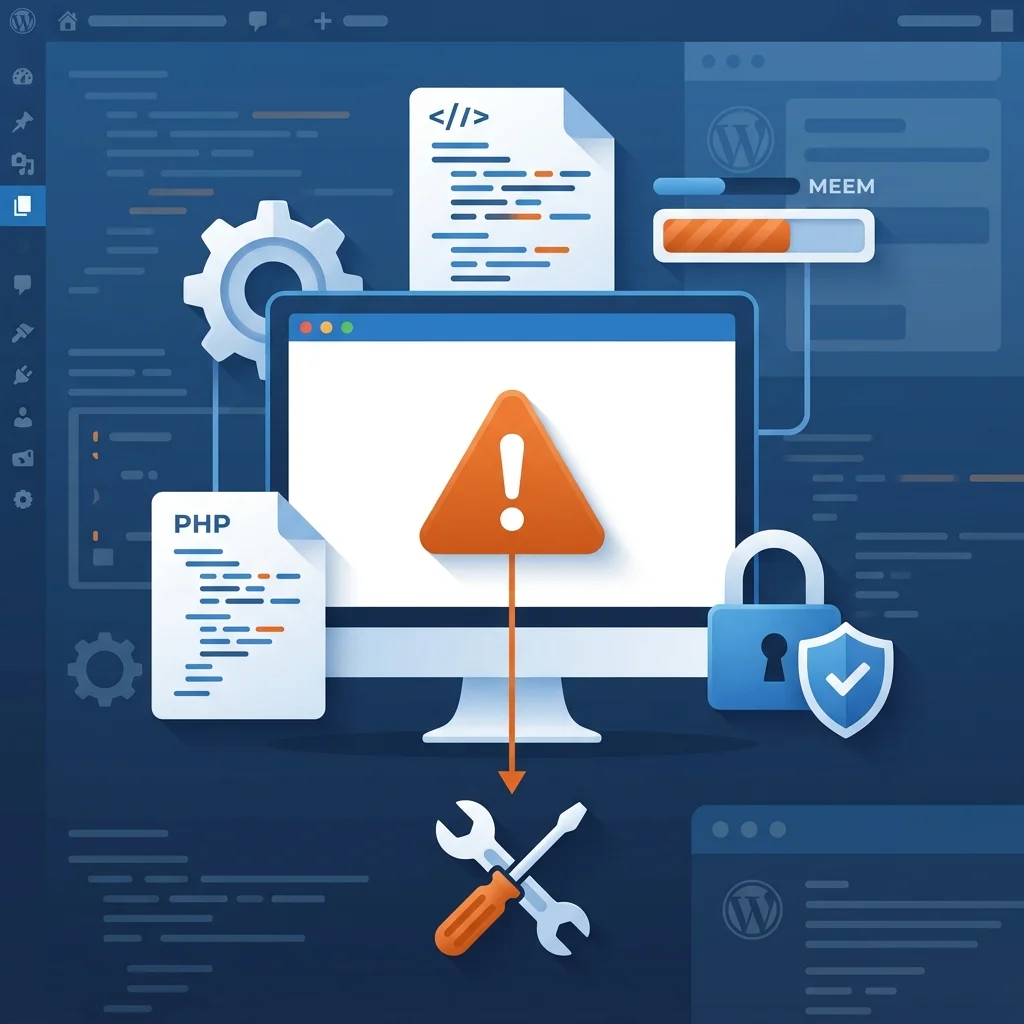
You just got the dreaded WSOD (White Screen of Death), and yes, it’s as frustrating as it sounds.
In the vast majority of cases, it’s fixed by following a series of simple steps. If you’re new to WordPress, you may want to first understand the difference between WordPress.com and WordPress.org.
What the white screen of death is
WSOD is a critical PHP error that prevents WordPress from running. Since the language is configured not to display errors in production, the result is an empty page with no message.
There are other types of HTTP errors, don’t confuse them. Here’s a guide to HTTP 404, 301 codes and other web errors that block Google.
The most common causes
- PHP memory limit exhaustion: a plugin or theme consumes more resources than your hosting allows.
- Plugin or theme conflicts: incompatibilities after an update.
- Syntax errors: a mistake in a file’s code (usually after editing functions.php).
- Incorrect file permissions: configurations that prevent WordPress from reading its own files.
Step 1: Clear the cache
Sometimes it’s not WordPress. It’s your browser showing a stale version of the site. Do the following:
- Browser cache: in Chrome, go to the three dots → More tools → Clear browsing data. Check «Cached images and files».
- Plugin cache: if you use LiteSpeed Cache, WP Rocket or similar, access its settings and hit «Purge all».
- Hosting cache: if you can’t access the WordPress dashboard, many hostings let you purge the cache from their own control panel.
If your website loads after this, the problem was the cache. End of story.
Step 2: Deactivate all plugins
Plugin conflicts are the number one cause of WSOD after an update.
If you can access the admin dashboard
Go to Plugins → select all active plugins with the top checkbox → in Bulk actions, choose Deactivate and click Apply. Reload your website. If it works, the problem is one of the plugins. Reactivate them one by one, checking the site after each activation. The one that breaks the site is the culprit.
If you CANNOT access the dashboard
You need FTP access or your hosting’s file manager
(cPanel, Plesk, etc.). Connect to your server and go into
public_html, open the wp-content folder,
find plugins and rename it to
plugins-disabled. WordPress will automatically deactivate
all plugins because it can’t find them. Access your dashboard again. If
it works, rename the folder back to plugins and
reactivate one by one.
When you find the problematic plugin, you can delete it, look for an alternative or roll back to a previous version with a plugin like WP Rollback.
Step 3: Switch to a default theme
If deactivating plugins didn’t fix anything, the problem may be in your theme.
If you can access the dashboard
Go to Appearance → Themes. Install and activate a default WordPress theme (Twenty Twenty-Four, Twenty Twenty-Five…). Reload your website. If it works, the problem was your previous theme.
If you CANNOT access the dashboard
Connect via FTP or the file manager. Go to
wp-content and rename the themes folder to
themes-disabled. WordPress will automatically use the
most recent default theme installed. If you don’t have any,
download one from the official repository, upload it as a .zip
to the themes folder and activate it from the dashboard.
Step 4: Enable debug mode
If the previous steps haven’t worked, you need to see the real error. Debug mode shows it to you.
Back up your site before touching anything. Access
public_html and open the wp-config.php file.
Look for this line:
define( 'WP_DEBUG', false );
And change it to:
define( 'WP_DEBUG', true );
define( 'WP_DEBUG_LOG', true );
define( 'WP_DEBUG_DISPLAY', false );
Save the file and reload your website. A debug.log file
will be generated in wp-content with the real error.
Important: when you finish fixing the problem,
set WP_DEBUG back to false. Don’t leave
debug mode active in production.
Step 5: Increase the PHP memory limit
Memory exhaustion is one of the most frequent causes of WSOD, especially on shared hosting.
- Access
wp-config.php. - Find the line that says
/* That's all, stop editing! Happy publishing. */. - Just before it, add:
define( 'WP_MEMORY_LIMIT', '256M' );
define( 'WP_MAX_MEMORY_LIMIT', '512M' );
Save the file and reload your website. If your hosting has a maximum limit (common on shared plans), you’ll need to contact their support to have it increased. You can also ask them for the PHP error logs to identify exactly what’s consuming the memory.
Step 6: Restore a backup
If nothing above works and you have a recent backup, restoring it is the fastest route.
Having an automatic backup system is the best investment you can make for your website. If you don’t have one, install it today (Jetpack Backup, UpdraftPlus, BlogVault…).
Restoring a previous version undoes the recent changes that caused the problem. It’s faster than continuing to investigate if you’re in a hurry to get the site back up.
Step 7: Delete the .maintenance file
If your website got stuck during an update, it may have left a file that blocks access.
- Access
public_html. - Look for a file named
.maintenance. - If it exists, delete it.
- Reload your website.
WordPress creates this file during updates and deletes it when finished. If the process is interrupted, the file stays and blocks the site.
Step 8: Check file permissions
This is the last resort. Only if everything else has failed. And only if you know what you’re doing: incorrect permissions can open security vulnerabilities.
| Type | Value |
|---|---|
| Folders | 755 |
| Files | 644 |
| wp-config.php | 600 or 644 |
From cPanel or your file manager, select the folders
wp-admin, wp-content and wp-includes and
apply 755 recursively. Then, select all the
files in the root directory and apply 644.
If you don’t have experience with permissions, contact your hosting or a developer before touching anything. A mistake here can expose your installation to attacks.
Frequently asked questions about the white screen of death
Do I lose my website content if I see the white screen?
No. WSOD doesn’t delete anything. Your content remains intact in the database. The error only prevents the code that displays it from executing correctly. Once you fix the cause, everything will appear again.
Can a hack cause the white screen?
Yes. Malicious code can damage WordPress files or exhaust the server’s resources. If WSOD persists after trying all the steps, run a security scan with a plugin like Wordfence or Sucuri.
What is WordPress Recovery Mode?
It’s a built-in security feature that activates automatically when a plugin or theme causes a critical error. WordPress sends you an email with a secure link to access the dashboard without the faulty plugin loading.
How do I contact my hosting for help?
Contact their support and tell them you have a white screen. Ask them specifically for the PHP error logs of your account. Those records show the exact file and line of code that caused the fatal error. It’s the most valuable information you can get.
What do I do if none of this works?
If you’ve tried everything and still see the white screen, contact a developer specialized in WordPress. The problem may require a deeper review of the database or the theme code.
And when the site is working again, don’t forget to review the Core Web Vitals: what they are and how to improve them, the robots.txt and sitemap XML correctly configured and to consider a WordPress maintenance plan so the problem doesn’t happen again.
If you’d rather not touch anything technical, you can run a complete SEO audit in 7 steps to review the real state of your WordPress and detect problems before they appear. And if you want to go further, review how to optimize your website for AI (GEO).

Is your WordPress giving you trouble?
I help you diagnose, repair and maintain your WordPress so you don’t lose traffic or rankings on Google.